Am I the only person having this problem? The "N" key on the keyboard to my MacBook Pro is chipped again. I may type a lot, but I've owned countless keyboards and never had to replace keys due to regular usage.
Something's wrong with the material used to make keys on the MacBook Pro.
Showing posts with label MacBook Pro. Show all posts
Showing posts with label MacBook Pro. Show all posts
Tuesday, September 30, 2008


Monday, May 19, 2008
Connecting a TomTom 720 GPS to a MacBook Pro with Parallels
Most USB devices work fine with my MacBook Pro and Parallels. And I can switch USB devices seamlessly between Mac OS X and Parallels. The only device that I've had trouble with is my TomTom 720 GPS. For some reason, this device always auto-disconnects in Vista under Parallels before I can do anything with the TomTom.
Here's a trick to make it work though. Before launching your Parallels OS, open the Configuration/USB panel, and set your USB support to "Connect to Guest OS". This means that any USB device will automatically be connected to the Guest OS (Vista in my case).
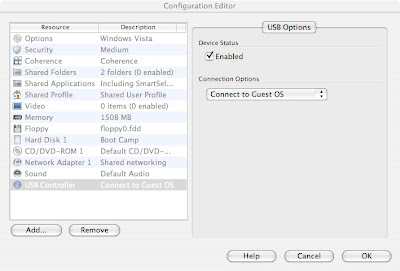
Now, when I plug the TomTom 720 into my Macbook Pro, it is immediately recognized in Vista, and works as expected.
Here's a trick to make it work though. Before launching your Parallels OS, open the Configuration/USB panel, and set your USB support to "Connect to Guest OS". This means that any USB device will automatically be connected to the Guest OS (Vista in my case).

Now, when I plug the TomTom 720 into my Macbook Pro, it is immediately recognized in Vista, and works as expected.
Tuesday, April 29, 2008
I love the Apple Genius Bar!
The "N" key on my MacBook Pro was wearing down prematurely. I have no idea why its only the "N" key...every other key on the keyboard is holding up just fine. I tried to contact Apple support through their website, but it directed me to the Apple Store in Tysons Corner instead.
So yesterday on the way home from work, I decided to stop by the store and get it fixed.
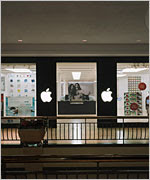 How good was my customer service experience at Apple? In one word - FANTASTIC. It's a Monday, and the store was still buzzing with about 25 customers spread throughout the room. First thing upon arrival, I had to schedule an appointment with a Genius at the Genius Bar through Apple's Concierge. (you can also make an appointment ahead of time through Apple's website by the way).
While waiting - I checked e-mail in the "theater" at the back on what has to be the fastest WiFi connection I've ever stumbled across.
Within about 20 minutes, it was my appointment. Like a doctor's office, they call out your name and you shuffle up to the bar. I showed him the worn-down key....and without even looking at the serial number, he checked the rest of the keyboard for problems, walked into the back, and installed a new key...just like that. Granted, this wasn't a hard repair...but I didn't even have to fill out anything.
"Anything else I can help you with?"
This part I wasn't prepared for...now I wish I prepared a list of questions before I arrived. I just wasn't thinking ahead. So I rattled off anything that came into my head for the next 15 minutes. Things I wanted to know about Macs...but was too lazy to look up. He knew it all -- except for one question. (Can I upgrade from Beta BootCamp on Tiger to the BootCamp v2.1 update? The answer is NO -- I need to upgrade to Leopard first).
So here's two tips for first timers to the Genius Bar:
Also - back-up your hard-drive just in case you have to leave it overnight for repairs.
So yesterday on the way home from work, I decided to stop by the store and get it fixed.
 How good was my customer service experience at Apple? In one word - FANTASTIC. It's a Monday, and the store was still buzzing with about 25 customers spread throughout the room. First thing upon arrival, I had to schedule an appointment with a Genius at the Genius Bar through Apple's Concierge. (you can also make an appointment ahead of time through Apple's website by the way).
While waiting - I checked e-mail in the "theater" at the back on what has to be the fastest WiFi connection I've ever stumbled across.
Within about 20 minutes, it was my appointment. Like a doctor's office, they call out your name and you shuffle up to the bar. I showed him the worn-down key....and without even looking at the serial number, he checked the rest of the keyboard for problems, walked into the back, and installed a new key...just like that. Granted, this wasn't a hard repair...but I didn't even have to fill out anything.
"Anything else I can help you with?"
This part I wasn't prepared for...now I wish I prepared a list of questions before I arrived. I just wasn't thinking ahead. So I rattled off anything that came into my head for the next 15 minutes. Things I wanted to know about Macs...but was too lazy to look up. He knew it all -- except for one question. (Can I upgrade from Beta BootCamp on Tiger to the BootCamp v2.1 update? The answer is NO -- I need to upgrade to Leopard first).
So here's two tips for first timers to the Genius Bar:
- Schedule an appointment ahead of time on the web-site. Click here, to find the closest Apple Store location, then Reserve a time at the Genius Bar.
- Make a list ahead of time with any questions you have about your Mac. Unlike other ordinary stores -- these guys actually know what they are talking about!
Also - back-up your hard-drive just in case you have to leave it overnight for repairs.
Wednesday, April 9, 2008
Spooge Error? Dawn Of War does work on a MacBook Pro

I recently ran into problems with Dawn of War on my MacBook Pro when Patch 140 was applied. The next time I launched Dawn of War after Patch 140 was applied, I was greeted with the following odd error:

"Spooge driver not found. Verify that DirectX is properly installed."
Chances are - you are fine, and there is no driver problem. If you Google the Net you'll see lots of people offering advice to run diagnostics, load drivers from unofficial locations, reload DirectX..... Don't do any of that...it's unnecessary. And it may also really mess up your system if you install a video driver that didn't come with Boot Camp.
Instead, continue applying Dawn of War patches manually until you reach the latest official patch release (v1.51). Now since Dawn of War is no longer working, you'll have to download them manually from here:
Dawn of War Patches
Once you've reached the highest patch level available (currently v1.51), then follow the instructions at this link. It's a small text file that tells Dawn of War to ignore the Spooge error.
Spooge error with VISTA and 8800 GTX
This blogger's patch was for Vista and an 8800 GTX card. But it also works for the 8600M board that's built into the MacBook Pro.
Now Dawn of War should run without problems. I hope this saves other people a lot of headaches. Dawn of War is an EXCELLENT game and it runs super-smooth at high resolutions on a MacBook Pro. Don't let that Spooge Error wreck your day!
Saturday, July 7, 2007
Internet Anywhere! Connecting the Cingular SYNC (Samsung SGH-A707) to a MacBook Pro via AT&T
The following articles helped me get my Samsung SYNC talking to my MacBookPro:
Tether Your Smartphone To Your Mac, Ross Barkman's Home Page, and Tethering on the Samsung A707
After buying my MacBook Pro with built-in Bluetooth - I couldn't wait to tether it to a cellular phone and get Internet connectivity anywhere I have cell-phone coverage.
But first - I had to upgrade my old cell-phone, the Nokia 6030. A great phone, small, reliable, but a little low on gadgets by today's standard.
I knew I wanted a 3G capable phone, but since I'm prone to losing phones, I also didn't want to spend a lot. AT&T had a special for their Samsung SYNC phone this weekend that was just what I wanted -- only $49 with a 2-year contract (after $50 rebate). What attracted me to this phone was:
They also had the Motorola Razr V3xx phone for $FREE$ with a 2-year contract. But I picked up both, and liked the feel of the buttons on the Samsung SYNC better. The SYNC also had a 2M camera vs. a 1.3M camera.
Note: Make sure you add an appropriate data plan to allow data transfers.
And, be sure you are running Mac OS X v10.4.9 or higher in order to get the latest bluetooth updates.
Getting the Mac talking to the Samsung took me about an hour...but hopefully - I can reduce the work to only 15 minutes for anybody reading this post..
Samsung
MacBook Pro
Your Samsung SYNC phone may ask a question periodically..."DUN Connect with the MacBook Pro computer?". Obviously, you should answer YES.
If everything went smoothly - you should now be connected to the internet on your MacBook Pro through your Samsung SYNC phone!
And if you want the MacBook to seamlessly connect to your Samsung SYNC so you don't even have to pull it out of your pocket! That's possible also. Visit the following menu on the SYNC: Menu / Settings / Connectivity / Bluetooth / My Devices. Choose your computer from the list. Click Options. Then "Authorize Device". Once your MacBook Pro is authorized, you will no longer be prompted for any bluetooth activity!
Tether Your Smartphone To Your Mac, Ross Barkman's Home Page, and Tethering on the Samsung A707
After buying my MacBook Pro with built-in Bluetooth - I couldn't wait to tether it to a cellular phone and get Internet connectivity anywhere I have cell-phone coverage.
But first - I had to upgrade my old cell-phone, the Nokia 6030. A great phone, small, reliable, but a little low on gadgets by today's standard.
I knew I wanted a 3G capable phone, but since I'm prone to losing phones, I also didn't want to spend a lot. AT&T had a special for their Samsung SYNC phone this weekend that was just what I wanted -- only $49 with a 2-year contract (after $50 rebate). What attracted me to this phone was:
- 2M Camera
- Bluetooth Support
- 3G network support
- And most importantly, Bluetooth DUN support
They also had the Motorola Razr V3xx phone for $FREE$ with a 2-year contract. But I picked up both, and liked the feel of the buttons on the Samsung SYNC better. The SYNC also had a 2M camera vs. a 1.3M camera.
Note: Make sure you add an appropriate data plan to allow data transfers.
And, be sure you are running Mac OS X v10.4.9 or higher in order to get the latest bluetooth updates.
Getting the Mac talking to the Samsung took me about an hour...but hopefully - I can reduce the work to only 15 minutes for anybody reading this post..
Samsung
- Menu / Settings / Connectivity / Bluetooth
- Set Activation to ON
- Set My Phone's Visibility to ON
- Set My Phone's Name to whatever you want
MacBook Pro
- Visit Ross Barkman's Home Page and download the Generic 3G Scripts
- Expand the downloaded file with StuffIt Expander, and copy the file "Generic 3G CID1" to the directory "Library:Modem Scripts"
- System Peferences / Bluetooth
- Click Set Up New Device...
- Choose "Mobile Phone" as the Device Type
- The Assistant will now search for your mobile phone, and it should be listed
- Select your phone, and press Continue
- The first time your MacBook Pro communicates with your Samsung SYNC phone, you must approve the pairing with a pass key. A numeric passkey will be shown on the MacBook. At the same time, the Samsung SYNC should display a dialog window asking for the passkey. Enter the numeric key from the MacBook into the Samsung
- Select Services you want to use. Choose "Use Address Book", "Access the Internet with your phone's data connection", and "Use a direct, higher speed connection to reach your Internet Service Provider"
- Press Continue
- Click Continue / Quit
- Select System Preferences / Network
- Select Show: "Bluetooth"
- Click PPP, and your Bluetooth settings should be already populated
- Click Dial Now..., and another window will appear...
- Click Connect
You will be prompted for information specific to the Cingular network. Use the settings below:
Username: WAP@CINGULARGPRS.COM
Password: CINGULAR1
GPRS CID String: ...leave this field blank...
Modem Script: Generic 3G CID1
Service Provider: Enter whatever you want here
Account Name: WAP@CINGULARGPRS.COM
Password: CINGULAR1
Telephone Number: Leave Blank!
Alternate Number: Leave Blank!
Your Samsung SYNC phone may ask a question periodically..."DUN Connect with the MacBook Pro computer?". Obviously, you should answer YES.
If everything went smoothly - you should now be connected to the internet on your MacBook Pro through your Samsung SYNC phone!
And if you want the MacBook to seamlessly connect to your Samsung SYNC so you don't even have to pull it out of your pocket! That's possible also. Visit the following menu on the SYNC: Menu / Settings / Connectivity / Bluetooth / My Devices. Choose your computer from the list. Click Options. Then "Authorize Device". Once your MacBook Pro is authorized, you will no longer be prompted for any bluetooth activity!
Friday, July 6, 2007
Installing Oracle 10g on an Intel-based MacBook Pro using Parallels
I was switching to a new client this month, so I decided to treat myself to a top-of-the-line 17" Apple MacBook Pro. I've seen a lot of co-workers at AOL walking around the building with the MBP and I was hit with Mac-envy.
After a few days...Although I still love the machine, my first week did not go smoothly.
My original goal was to install Oracle 10g, and eclipse to emulate the Unix development environment on my MacBook Pro. So I started by downloading Oracle 10g from the Oracle site itself:
Oracle Download Site
There is a link on this page for "Oracle Database 10g Release 1 (10.1.0.3) for Mac OS X Server". If you have an Intel-based MacBook Pro like me (Core Duo 2), THIS WILL NOT WORK! I spent hours working through the pre-install documentation over and over again to find out where I was doing wrong.... It turns out that Oracle 10g (as of v10.1.0.3 which was the latest version for OS X on Mac as of July 2007), does not work on Intel-based Macs!
So since I can't run 10g on Mac OS X natively -- I thought I'd use Apple's Boot Camp to run 10g under XP or Vista.
And knowing that the Core Duo 2 chips are 64-bit chips - I purchased a copy of Vista 64-bit Home Premium. That was the start of my second mistake.
Apple Boot Camp
Although Windows Vista 64-bit Home Premium was booting on my MacBook Pro, I had no networking support, no sound, and no ATI exhanced graphics support. After struggling with Boot Camp for another few hours, I discovered, that Boot Camp v1.3 (the latest as of July 2007) does not work with 64-bit Windows operating systems! Well, it actually does, but you won't have audio drivers, network drivers, camera, extended keyboard, or extended USB support.
After more research, I stumbled upon this link which describes how to install a Red-Hat clone using Parallels in Mac OS X in order to run Oracle 10g.
Install Oracle 10g on an Intel Mac
If I found this link first, I might have been willing to try it. But at this point, I was exhausted. So I took the easy route.
This is the solution I eventually settled upon:
This all worked perfectly -- and now I could dual-boot my MacBook Pro and have a true Windows environment or true OS X environment.
Random Mac Tips:
Next I installed "Oracle Database 10g Release 2 (10.2.0.1.0) for Microsoft Windows" from the Oracle download page.
Oracle download page
Important Note! If you do not have a fixed IP address, you will need to install the Microsoft Loopback Adapter and choose a fixed IP address. Do this BEFORE installing Oracle, or else you will most likely have to remove and re-install Oracle.
KnowledgeBase article about installing the Microsoft Loopback Adapter
Now Oracle 10g should install without a problem.
Then, I decided to push my luck, and try out Parallels. Parallels gives me a virtual Windows machine within a running Mac OS X environment. There is a 15-day free trial available.
Parallels Desktop for Mac
Parallels installed flawlessly, and identified my BootCamp parition and created its own variant of the BootCamp launch configuration.
Once completed - Windows XP was running within a window on my Mac OS X desktop!
One last piece was missing though, the Mac could not communicate to Oracle within Parallels Desktop. By default, XP Home installs a Windows Firewall. What Parallels does is create two separate virtual machines running on the same MacBook Pro. So although they are on the same desktop and same machine, they cannot talk to each other because Windows has its own Firewall.
Visit the Windows Control Panel / Firewall Settings, and add Oracle-friendly-ports such as 1158, 1521, and 5560.
Now - within a single desktop environment - I can build applications in Java on OS X while accessing Oracle 10g on Windows.
After a few days...Although I still love the machine, my first week did not go smoothly.
My original goal was to install Oracle 10g, and eclipse to emulate the Unix development environment on my MacBook Pro. So I started by downloading Oracle 10g from the Oracle site itself:
Oracle Download Site
There is a link on this page for "Oracle Database 10g Release 1 (10.1.0.3) for Mac OS X Server". If you have an Intel-based MacBook Pro like me (Core Duo 2), THIS WILL NOT WORK! I spent hours working through the pre-install documentation over and over again to find out where I was doing wrong.... It turns out that Oracle 10g (as of v10.1.0.3 which was the latest version for OS X on Mac as of July 2007), does not work on Intel-based Macs!
So since I can't run 10g on Mac OS X natively -- I thought I'd use Apple's Boot Camp to run 10g under XP or Vista.
And knowing that the Core Duo 2 chips are 64-bit chips - I purchased a copy of Vista 64-bit Home Premium. That was the start of my second mistake.
Apple Boot Camp
Although Windows Vista 64-bit Home Premium was booting on my MacBook Pro, I had no networking support, no sound, and no ATI exhanced graphics support. After struggling with Boot Camp for another few hours, I discovered, that Boot Camp v1.3 (the latest as of July 2007) does not work with 64-bit Windows operating systems! Well, it actually does, but you won't have audio drivers, network drivers, camera, extended keyboard, or extended USB support.
After more research, I stumbled upon this link which describes how to install a Red-Hat clone using Parallels in Mac OS X in order to run Oracle 10g.
Install Oracle 10g on an Intel Mac
If I found this link first, I might have been willing to try it. But at this point, I was exhausted. So I took the easy route.
This is the solution I eventually settled upon:
- Install Apple Boot Camp (free). Be sure to the read the Boot Camp documentation, you will need a blank CD-R and a real installation disk of some variant of a 32-bit Windows operating system (XP, or Vista).
- Partition your drive via Boot Camp. I chose NTFS for my file-system.
- Install Windows XP via Boot Camp
- After the full XP installation is completed, you will need to run the Boot Camp CD that was burned by Boot Camp while in the fresh-Windows installation in order to install Windows drivers for all the MacBook Pro devices.
This all worked perfectly -- and now I could dual-boot my MacBook Pro and have a true Windows environment or true OS X environment.
Random Mac Tips:
- Hold the "Option" key to choose which partition you want to use while booting.
- Press the TrackPad while booting to eject the CD
Next I installed "Oracle Database 10g Release 2 (10.2.0.1.0) for Microsoft Windows" from the Oracle download page.
Oracle download page
Important Note! If you do not have a fixed IP address, you will need to install the Microsoft Loopback Adapter and choose a fixed IP address. Do this BEFORE installing Oracle, or else you will most likely have to remove and re-install Oracle.
KnowledgeBase article about installing the Microsoft Loopback Adapter
Now Oracle 10g should install without a problem.
Then, I decided to push my luck, and try out Parallels. Parallels gives me a virtual Windows machine within a running Mac OS X environment. There is a 15-day free trial available.
Parallels Desktop for Mac
Parallels installed flawlessly, and identified my BootCamp parition and created its own variant of the BootCamp launch configuration.
Once completed - Windows XP was running within a window on my Mac OS X desktop!
One last piece was missing though, the Mac could not communicate to Oracle within Parallels Desktop. By default, XP Home installs a Windows Firewall. What Parallels does is create two separate virtual machines running on the same MacBook Pro. So although they are on the same desktop and same machine, they cannot talk to each other because Windows has its own Firewall.
Visit the Windows Control Panel / Firewall Settings, and add Oracle-friendly-ports such as 1158, 1521, and 5560.
Now - within a single desktop environment - I can build applications in Java on OS X while accessing Oracle 10g on Windows.
Subscribe to:
Posts (Atom)